

Managing Employees
Managing Employees
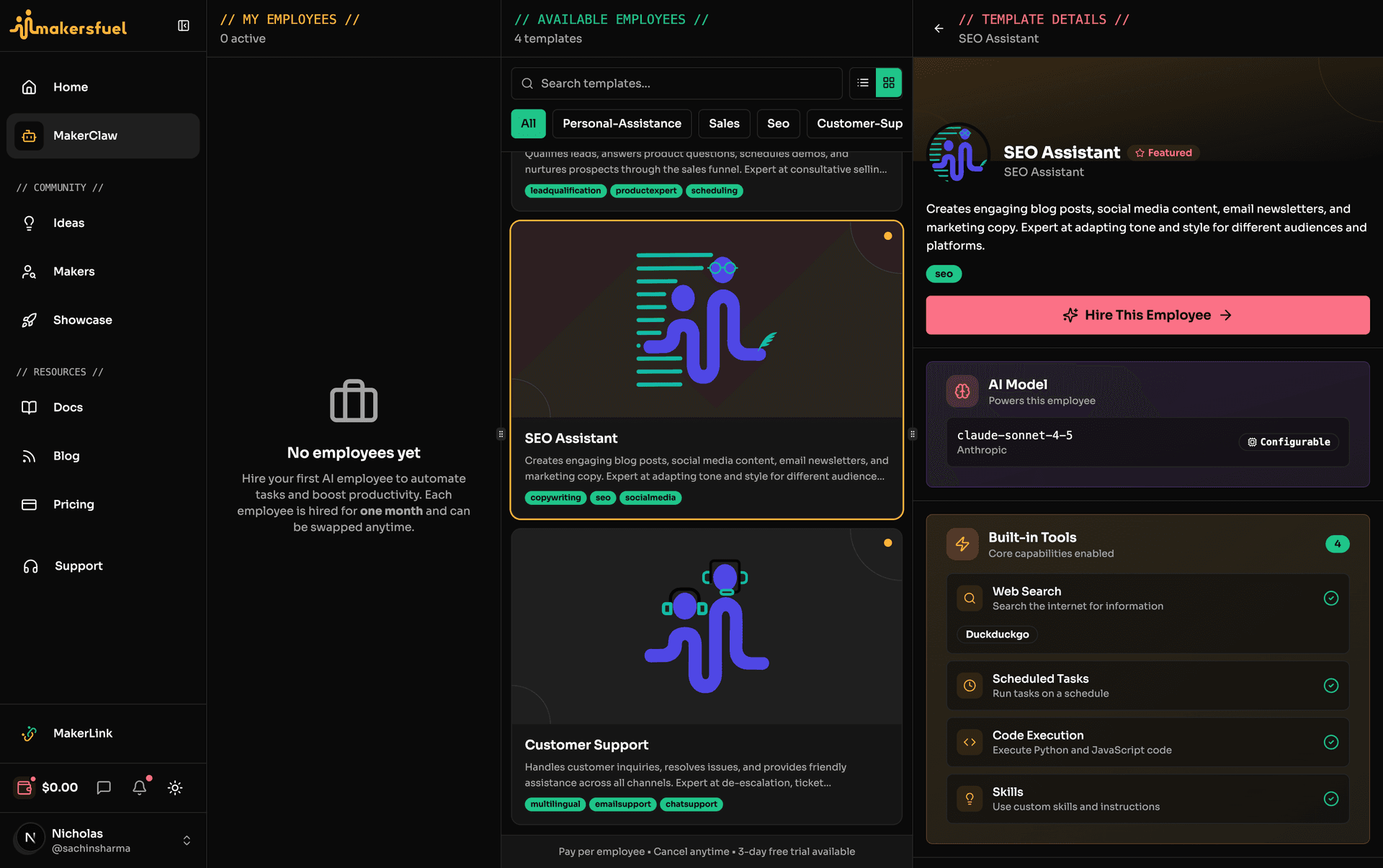
Learn how to effectively manage your AI employees day-to-day, including monitoring, upgrading, swapping, and cancelling employees.
Employee Dashboard
Access your employee dashboard by clicking MakerClaw in the sidebar.
Dashboard Views
| Tab | Shows |
|---|---|
| Active | Currently running, hibernated, and updating employees |
| Past | Terminated employees (can be rehired) |
Employee Cards
Each employee card displays:
- Name — Employee identifier
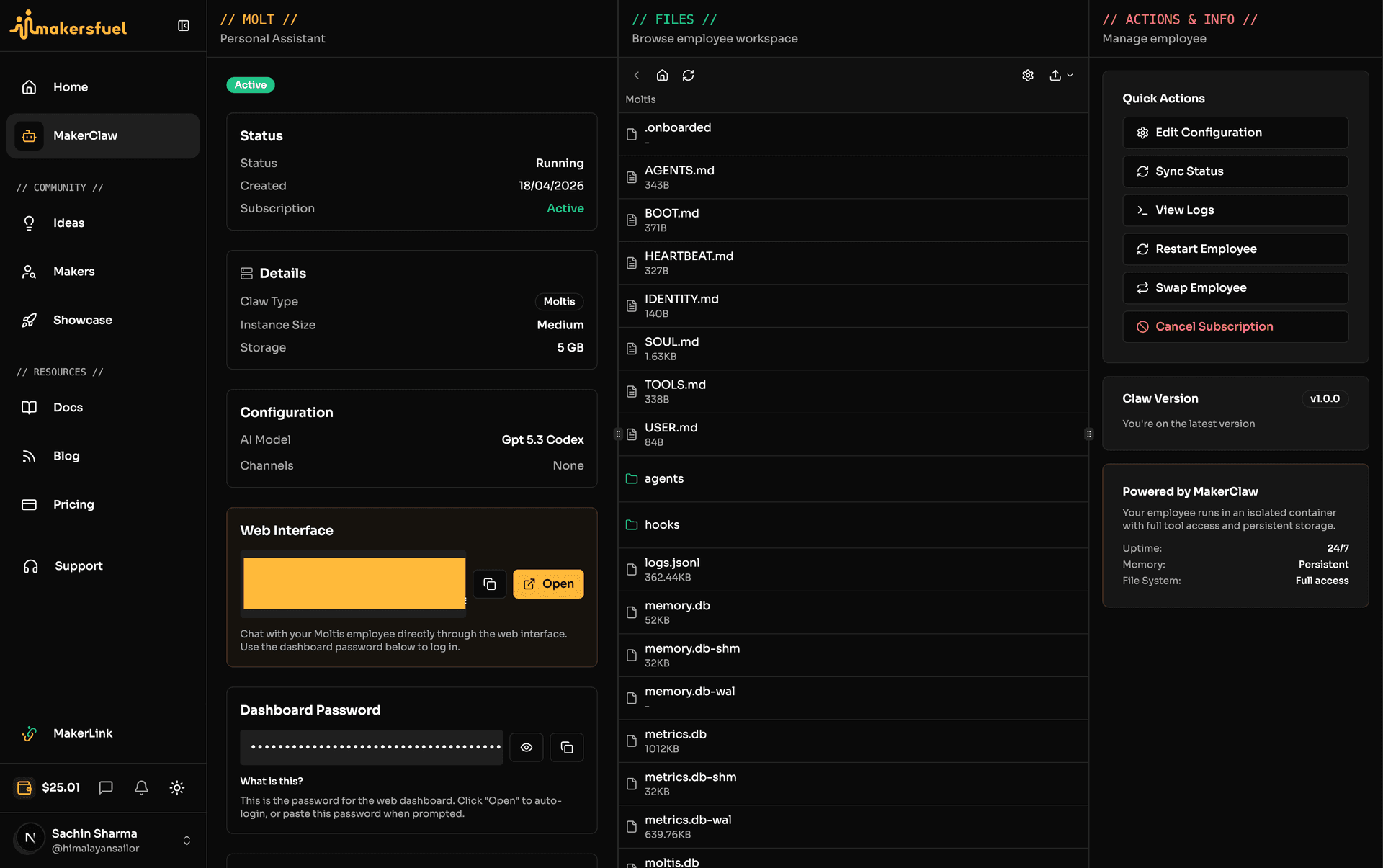
- Status — Running, Hibernated, Updating, Provisioning, Failed
- Template — Original template used
- Channels — Active communication channels (icons)
- Created — When the employee was hired
Employee Statuses
| Status | Meaning | Actions Available |
|---|---|---|
| 🟢 Provisioning | Being set up | Wait for completion |
| 🟢 Running | Active and responding | Open, Edit, View Logs, Web Chat, Upgrade, Swap, Cancel Subscription |
| 🟡 Updating | Configuration or version upgrade in progress | Wait for completion |
| 🟠 Hibernated | Deployment deleted, storage kept; has expiration timer | Restore, Cancel Subscription |
| 🔴 Failed | Error occurred | Retry, Edit |
| ⚫ Terminated | Shut down | Rehire |
Status Transitions
Provisioning → Running → Hibernated → Restored → Running
                 ↓           ↓
             Terminated ← ───┘
                 ↑
              Running (subscription ends)
Hibernated Status
When an employee is hibernated:
- The Kubernetes deployment is deleted to free resources
- Persistent storage is kept so data is preserved
- An expiration timer starts — if not restored before expiration, data may be cleaned up
- You can restore the employee to bring it back to Running
Hibernation typically happens when billing lapses or when you manually hibernate to save costs.
Common Operations
Opening the Web Dashboard
Click Open on a running employee to open its web dashboard in a new browser tab. The web dashboard provides direct access to the employee's interface, chat history, and management tools.
Editing Configuration
Modify any aspect of a running employee:
- Click on the employee
- Click Edit or Configure
- Make changes to channels, tools, or skills
- Click Save
Changes take effect immediately without restarting (live config sync).
View Logs
Click View Logs on a running employee to see its container logs. This is useful for debugging issues, monitoring activity, and verifying that channels and tools are working correctly.
Web Chat
For PicoClaw employees with a web chat channel configured, click Web Chat to open an in-browser chat session with the employee.
WhatsApp QR
- PicoClaw: View the WhatsApp QR code from the employee card to pair your WhatsApp account
- Moltis: WhatsApp is configured through the Moltis web dashboard after hiring (click Open to access)
Viewing Workspace Files
Access files in your employee's workspace:
- Click on the employee
- Navigate to Files or Workspace
- Browse, view, or download files
Workspace contains:
- Documents created by the employee
- Research outputs
- Logs and records
Upgrading Employees
When a new version of your employee's claw type is available, an Upgrade action appears on the employee card.
- Click Upgrade on the employee card
- Review the changelog showing what's new in the latest version
- Confirm the upgrade
- The employee enters Updating status while the new version is deployed
- Once complete, the employee returns to Running with the new version
Note: Upgrades preserve your employee's configuration, skills, and workspace data.
Swapping Employees
Swap lets you change an employee to a different claw type (e.g., from PicoClaw to Moltis or vice versa).
- Click Swap on the employee card
- Select the new claw type or template
- Confirm the swap
- The system deprovisions the old pod, creates a new one with the new type, and transfers your subscription
Important: Swapping creates a new employee instance with a new configuration. Your previous workspace data is not carried over.
Restoring Hibernated Employees
If an employee is in Hibernated status, you can restore it:
- Find the hibernated employee in the Active tab
- Click Restore
- The system re-provisions the deployment using the preserved storage
- The employee returns to Running status
Note: Restore before the expiration timer runs out. After expiration, storage may be cleaned up.
Cancelling Employees
To stop an employee, cancel its subscription. There is no separate "Terminate" button — cancellation is handled through the subscription.
- Click on the employee
- Click Cancel Subscription
- Confirm the cancellation
What Happens
| Step | Description |
|---|---|
| Runs until period ends | Employee continues running until the current billing period ends |
| Automatic termination | At the end of the billing period, the employee is terminated |
| Move to Past | Appears in "Past Employees" tab |
| Data archived | Workspace data kept for a period after termination |
| Billing stops | No further charges after the billing period |
Past Employees
View and manage previously terminated employees.
Viewing Past Employees
- Go to MakerClaw
- Click Past tab
- Browse terminated employees
Rehiring
Bring back a past employee with their original configuration:
- Find the employee in Past tab
- Click Rehire
- Review configuration
- Confirm (starts a new subscription: PicoClaw $20/mo min, Moltis $30/mo min)
Tip: Rehiring restores configuration but not workspace files.
Billing & Subscriptions
Each employee has its own subscription managed via Paddle:
- PicoClaw: Starting at $20/month
- Moltis: Starting at $30/month
View and manage individual employee subscriptions in Settings (click avatar at bottom of left sidebar, then Settings).
Monitoring & Troubleshooting
Checking Employee Health
Signs of a healthy employee:
- Status is "Running"
- Recent activity in channels
- No error messages
Common Issues
Employee Not Responding
| Step | Action |
|---|---|
| 1 | Check status — Is it Running? |
| 2 | Check channels — Are tokens valid? |
| 3 | Check wallet — Does it have balance? |
| 4 | View logs — Look for error messages |
Slow Responses
| Check | Solution |
|---|---|
| Tools | Too many tools can slow down responses |
| Skills | Very long skills add latency |
| MCP servers | External API calls add delay |
Incorrect Responses
| Check | Solution |
|---|---|
| Skills | Are instructions clear? |
| Context | Does employee have needed info? |
| Iterate | Test and refine skills |
Getting Help
If issues persist:
- Check employee logs via View Logs
- Review recent configuration changes
- Contact support via the help button
Best Practices
Regular Maintenance
| Frequency | Task |
|---|---|
| Daily | Check employee status |
| Weekly | Review response quality |
| Monthly | Update skills based on feedback |
| Quarterly | Evaluate if setup is optimal |
Security
| Practice | Description |
|---|---|
| Unique tokens | Never share bot tokens between employees |
| Review workspace | Periodically check what's stored |
| Rotate secrets | Update tool secrets periodically |
Quick Reference
| Action | How |
|---|---|
| Hire new employee | MakerClaw, then Hire |
| Open dashboard | Click employee, then Open |
| Edit employee | Click employee, then Edit |
| View logs | Click employee, then View Logs |
| Web Chat | Click employee, then Web Chat (PicoClaw) |
| Upgrade employee | Click employee, then Upgrade (when available) |
| Swap employee | Click employee, then Swap |
| Cancel employee | Click employee, then Cancel Subscription |
| Restore hibernated | Click employee, then Restore |
| View past employees | MakerClaw, then Past tab |
| Rehire employee | Past tab, then Rehire |
Next Steps
- Makers Directory — Connect with builders
- Subscription & Billing — Manage your plan
What did you think of this content?