
Account Settings
Account Settings
Manage your MakersFuel account, update your information, configure preferences, and handle security settings.
Accessing Settings
- Click your avatar at the bottom of the left sidebar
- Select Settings from the menu
Settings Sections
The Settings page is organized into the following sections:
| Section | What You Manage |
|---|---|
| Account Information | Email (read-only), display name |
| Change Password | Update your password |
| Subscription | AI employee subscriptions |
| Wallet | Assistiv AI USD balance |
| Security Vault | Third-party API keys for employee tools |
| Notifications | In-app and email alerts |
Account Information
View and manage basic account information:
| Setting | Description |
|---|---|
| Your login email (read-only) | |
| Display Name | How your name appears |
| Username | Your @handle (read-only) |
Note: Email and username are read-only and cannot be changed from the Settings page. Your username is set when you create your account and is permanent.
Change Password
- Go to Settings -> Change Password
- Enter current password
- Enter new password twice
- Save changes
Profile / Maker Profile
Your profile and Maker Profile settings (avatar, bio, headline, skills, expertise, location, social links, platform links, custom links, card appearance) are managed at /makers/edit, not on the Settings page.
See Makers Directory and MakerLink for details on profile fields.
Notification Settings
Control how you receive updates:
In-App Notifications
Configure what appears in your notification center:
| Category | What It Covers |
|---|---|
| Connections | Connection requests, accepts, and activity |
| Messages | New direct messages |
| Community | Posts, mentions, and activity |
| Employees | AI employee status changes and alerts |
Email Notifications
| Type | Description |
|---|---|
| Marketing | Feature announcements and product news |
| Updates | Community highlights and digest |
Email preferences are synced to Resend Audiences.
Note: Transactional emails (welcome sequence) are always sent and cannot be disabled.
Managing Notifications
- Go to Settings -> Notifications
- Toggle each notification type
- Changes save automatically
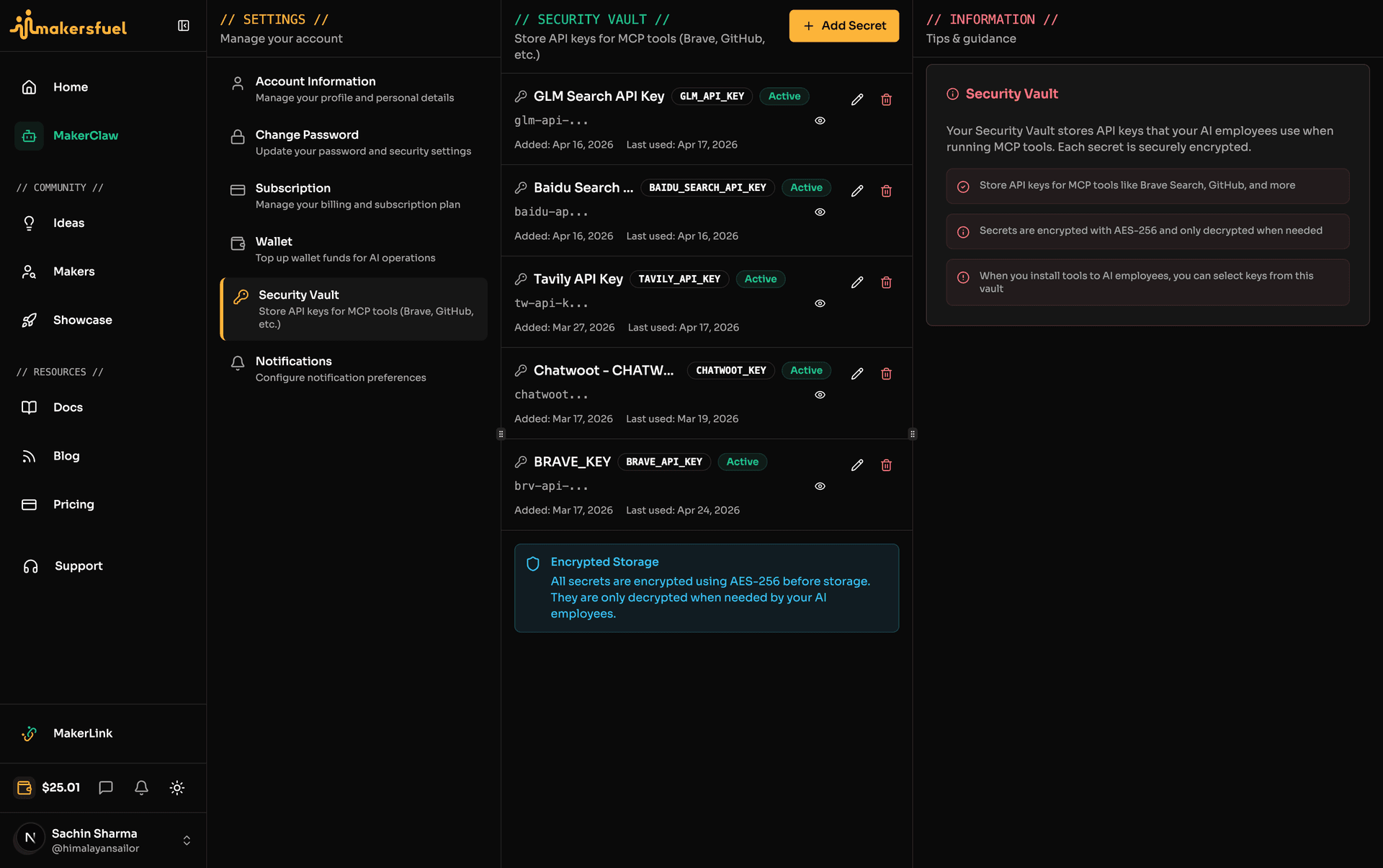
Security Vault
Store credentials that your AI employees use for third-party tools:
Supported Key Types
| Key Type | Required For |
|---|---|
| Brave | Brave Search tool |
| GitHub Token | GitHub integrations |
| OpenAI | OpenAI API access |
| Anthropic | Anthropic API access |
| Google API services | |
| Slack Bot Token | Slack channel integration |
| Discord Token | Discord channel integration |
| Database URL | Database connections |
| AWS Access Key | AWS services |
| AWS Secret Key | AWS services |
Adding Secrets
- Go to Settings -> Security Vault
- Click on the tool
- Enter your API key
- Save
Subscription
See Subscription & Billing for detailed information.
Quick access:
- Employee subscriptions
- Wallet balance
- Manage subscriptions
Wallet
Your AI employees are powered by an Assistiv AI wallet. View your balance and top up from Settings -> Wallet.
See Subscription & Billing for wallet details and commission information.
Theme & Appearance
Dark Mode
Toggle between light and dark themes using the theme toggle in the sidebar utility row (bottom of the left sidebar).
Options:
- Light
- Dark
- System (follows your device settings)
Getting Help
Support Options
- Help Center — Browse documentation (you're here!)
- Support Chat — Click the chat button
- Email — Contact [email protected]
Reporting Issues
When reporting problems:
- Describe what happened
- Include steps to reproduce
- Note your browser and device
- Screenshots help!
Account Best Practices
Security
| Practice | Why |
|---|---|
| Strong, unique password | Prevents unauthorized access |
| Review connected apps | Remove unused integrations |
| Keep email current | For account recovery |
Profile
| Practice | Why |
|---|---|
| Keep information current | Better networking |
| Use professional avatar | Increases trust |
| Complete maker profile | Improves discoverability |
| Update availability honestly | Sets expectations |
Notifications
| Practice | Why |
|---|---|
| Enable important notifications | Don't miss opportunities |
| Disable noisy ones | Reduce overwhelm |
| Check regularly | Stay engaged |
| Respond promptly | Build relationships |
What did you think of this content?